
How to Create and Manage Playlists in Ground Music (Step-by-Step Guide)
Learn how to create a playlist in Ground Music, add songs from search or from the player, reorder songs, remove songs, rename a playlist and delete it. Includes a video tutorial.
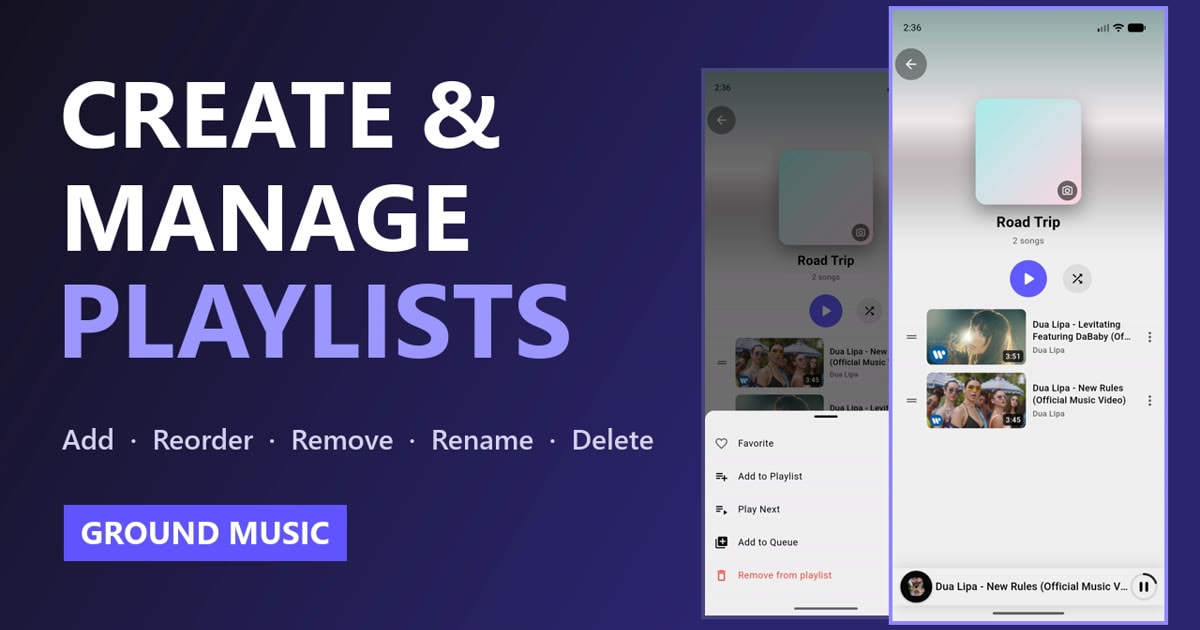
A playlist turns a pile of songs into something you can press play on and forget about: one for the gym, one for falling asleep, one for the drive home. In Ground Music, building and tidying up a playlist takes only a few taps, and this guide walks through every one of them.
You will learn how to create a playlist, add songs from search results or from the song that is playing right now, reorder and remove songs, and finally rename or delete a playlist. Prefer to watch? The full walkthrough is in the video below.
Quick summary
| What you want to do | Where to tap |
|---|---|
| Create a playlist | Library → Playlists → Create Playlist |
| Add a song from search | ⋮ next to the song → Add to Playlist |
| Add the song that's playing | Player → swipe the buttons → Playlist |
| Reorder songs | Open the playlist → drag the ☰ handle |
| Remove a song | ⋮ next to the song → Remove from playlist |
| Rename a playlist | ⋮ next to the playlist → Rename |
| Delete a playlist | ⋮ next to the playlist → Delete |
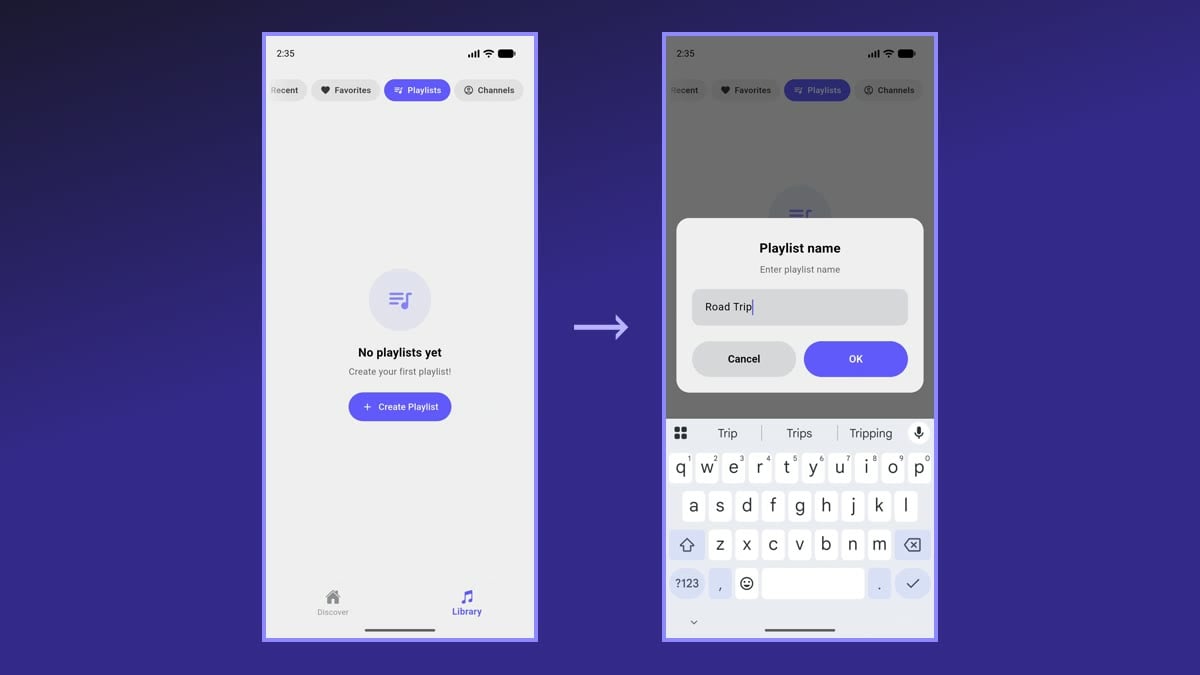
1. Create a new playlist
- Open the Library tab at the bottom of the screen.
- Select Playlists at the top.
- Tap Create Playlist. If you already have playlists, tap the + button instead.
- Type a name, for example Road Trip, and tap OK.
Your new playlist appears in the list straight away, ready for songs.
2. Add a song from search results
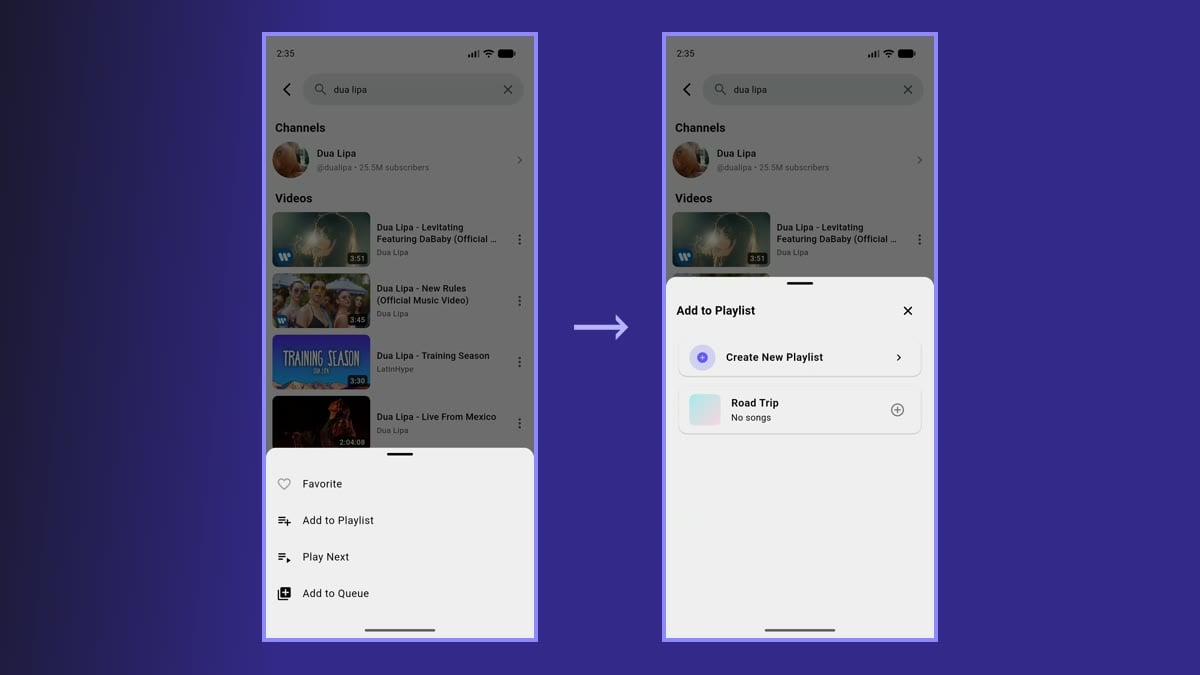
- Go to the Discover tab and search for a song, an artist or anything you want to hear.
- Tap the three dots (⋮) next to the song.
- Choose Add to Playlist.
- Pick your playlist. A short message confirms that the song was added.
Don't have a playlist yet? The Add to Playlist sheet also has a Create New Playlist button, so you can create one and add the song in a single step.
3. Add the song that's playing right now
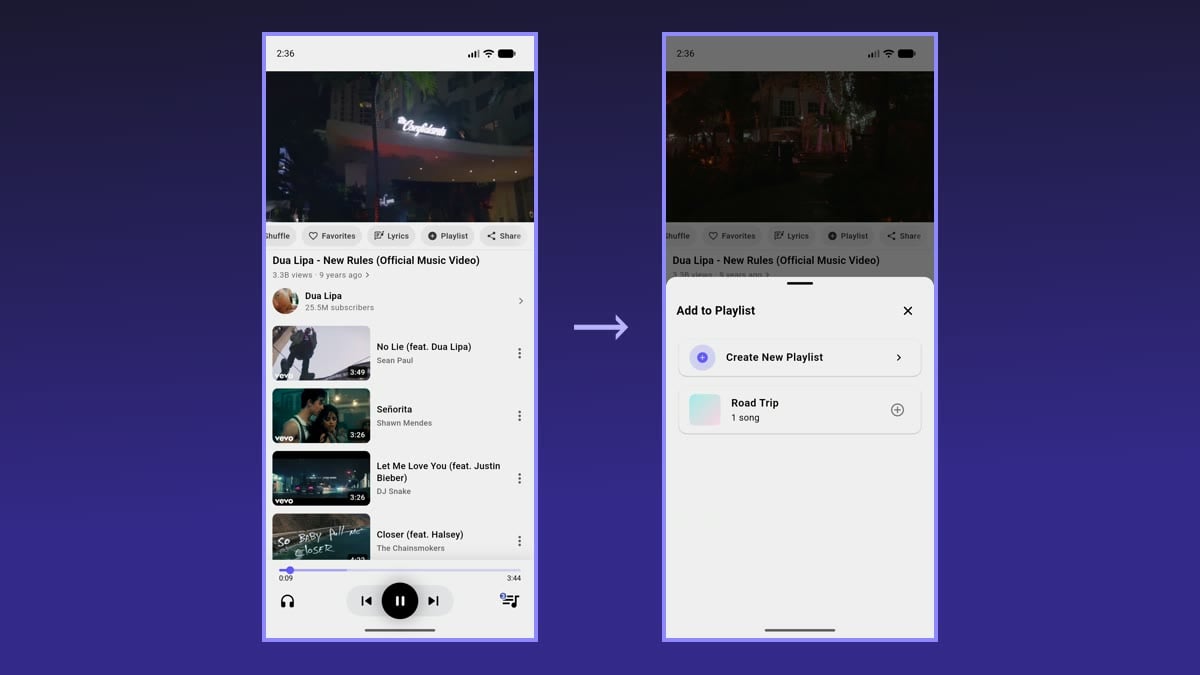
Heard something you like while listening? You can save it without leaving the player.
- Tap any song to open the player.
- Swipe the row of buttons under the video to the left.
- Tap Playlist.
- Choose the playlist you want.
This is the fastest way to collect songs as you discover them, especially while Autoplay is picking the next track for you.
4. Reorder songs in a playlist
- Go to Library → Playlists and open your playlist.
- Press and hold the handle (☰) on the left of a song.
- Drag it up or down to its new position and let go.
The new order is saved automatically, and the playlist will play in that order from now on.
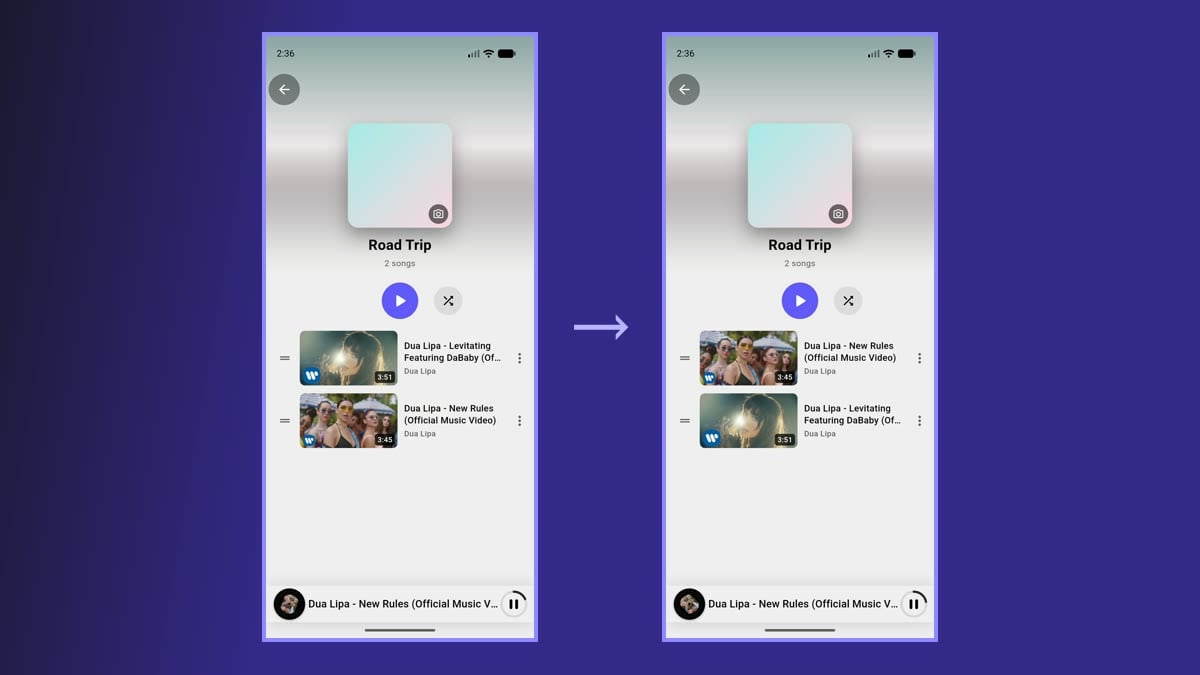
5. Remove a song from a playlist
- Open the playlist.
- Tap the three dots (⋮) next to the song you no longer want.
- Choose Remove from playlist.
The song disappears from the playlist right away. It is only removed from this playlist; you can always find it again and add it back.
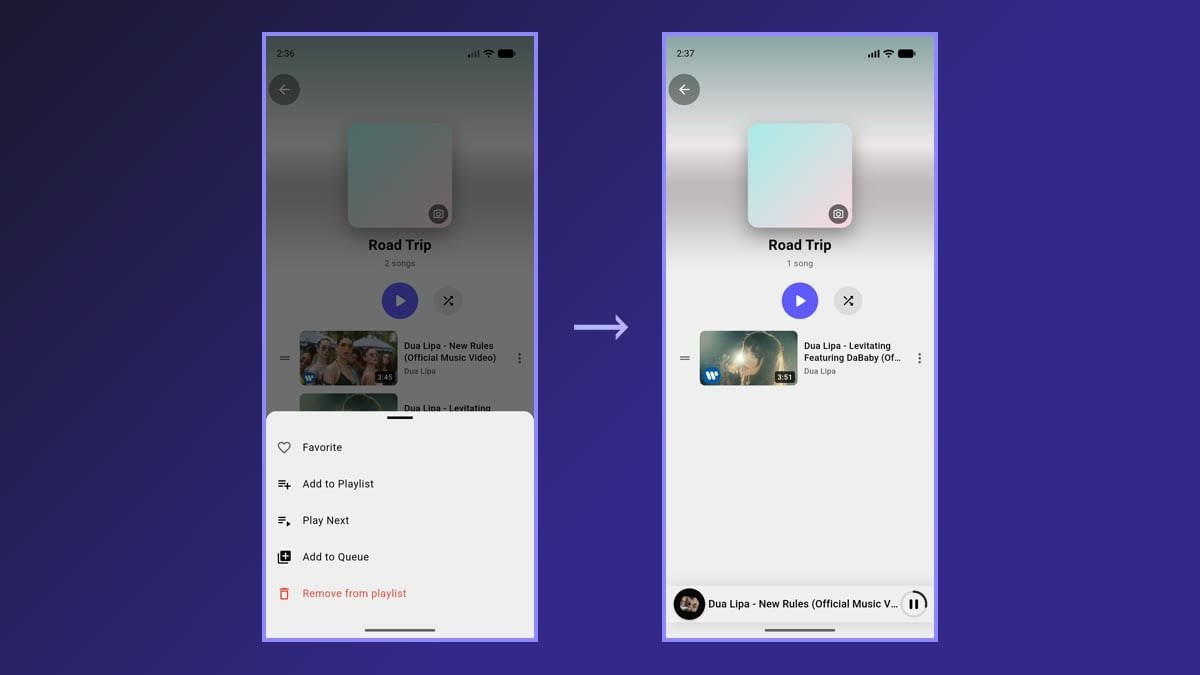
6. Rename a playlist
- Go back to Library → Playlists.
- Tap the three dots (⋮) next to the playlist.
- Choose Rename.
- Type the new name, for example Summer Hits, and tap Save. You can also add an optional description here.
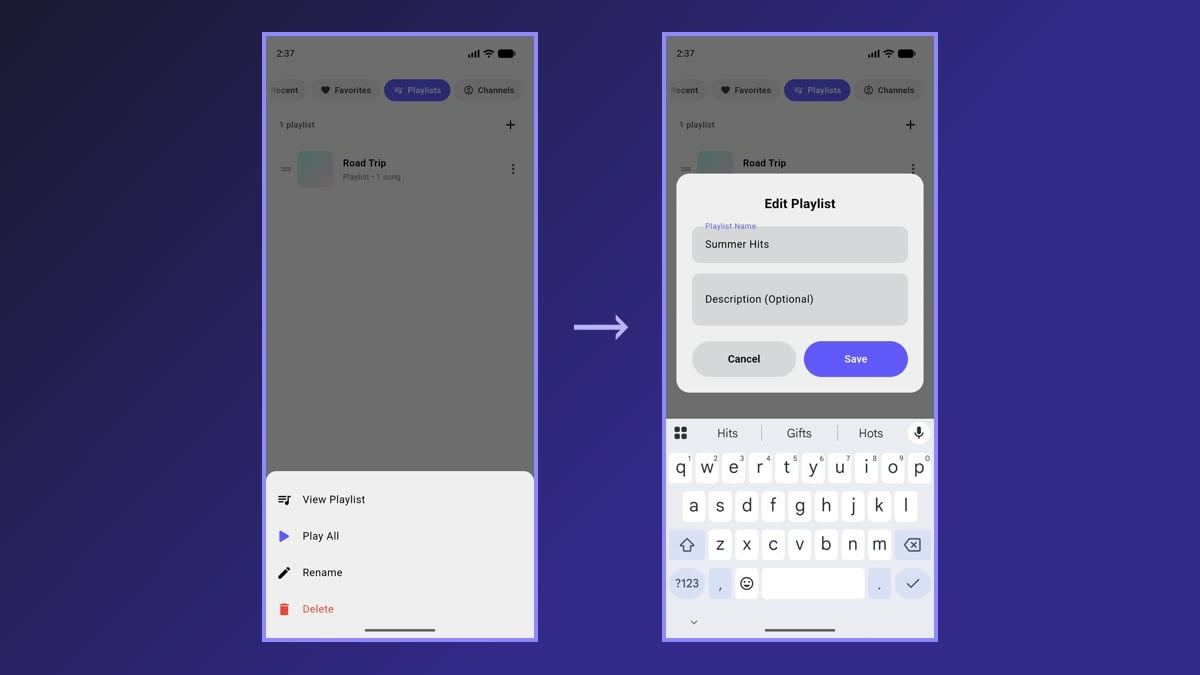
7. Delete a playlist
- In Library → Playlists, tap the three dots (⋮) next to the playlist.
- Choose Delete.
- Confirm by tapping Delete again.
The confirmation step means you won't delete a playlist by accident.
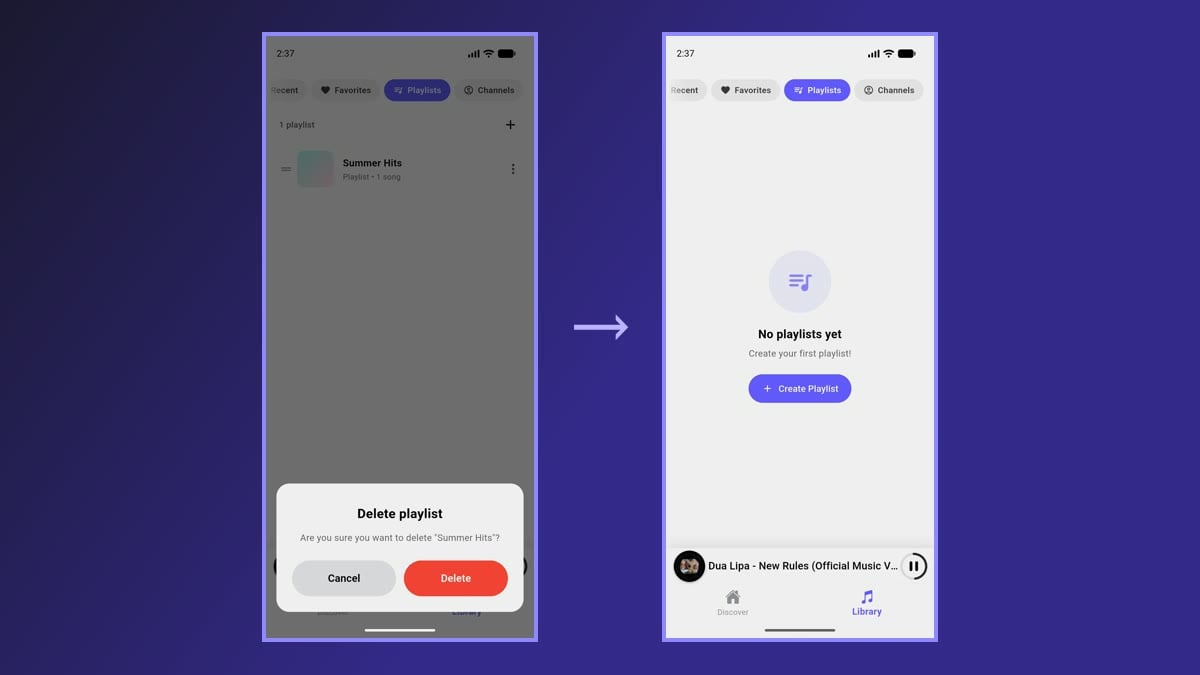
Tips for getting more out of your playlists
- One playlist per moment. A few focused playlists such as Sleep, Study, Gym and Driving are easier to use than one huge list.
- Keep listening with the screen off. Playlists keep playing in the background, so you can lock your phone and carry on. See how background play works.
- Sync across devices. Signing in with your Google account is optional. If you do, your playlists are backed up and synced to every device where you sign in.
- Shuffle when you want variety. Open a playlist and use the shuffle button next to Play for a different order every time.
Frequently asked questions
Do I need an account to create playlists?
No. Playlists work without an account and are stored on your device. Signing in with Google is only needed if you want a backup and syncing across devices.
Can I import my playlists from YouTube Music?
No. Ground Music cannot connect to a YouTube Music account or import its library. Your Ground Music playlists are separate: create them in the app, and sign in if you want them backed up.
Does removing a song from a playlist delete it anywhere else?
No. Remove from playlist only takes the song out of that playlist. Your other playlists, your favorites and your history are not affected.
How do I change the order of my playlists themselves?
In Library → Playlists, every playlist also has a ☰ handle on the left. Drag it to move the playlist up or down the list, just like you reorder songs.
Ready to build your first playlist? Open Ground Music, head to Library → Playlists, and tap Create Playlist. To see what else the app can do, take a look at all of its features.
Ready to Experience Ground Music?
Download Ground Music now and start listening to YouTube music with screen off completely free!